Site Actions |
  
|
Site Actions |
|
This feature of CleanLink works in conjunction with the Warnings system. The object of Actions is to notify other users of any changes to a site. Initially go to Setups > AA. Advanced > N. Action Types and define groups you think may need notification (an example is shown below):
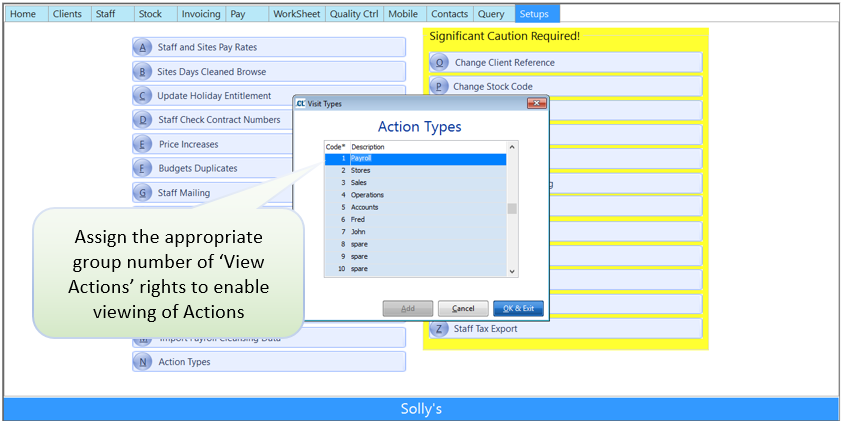
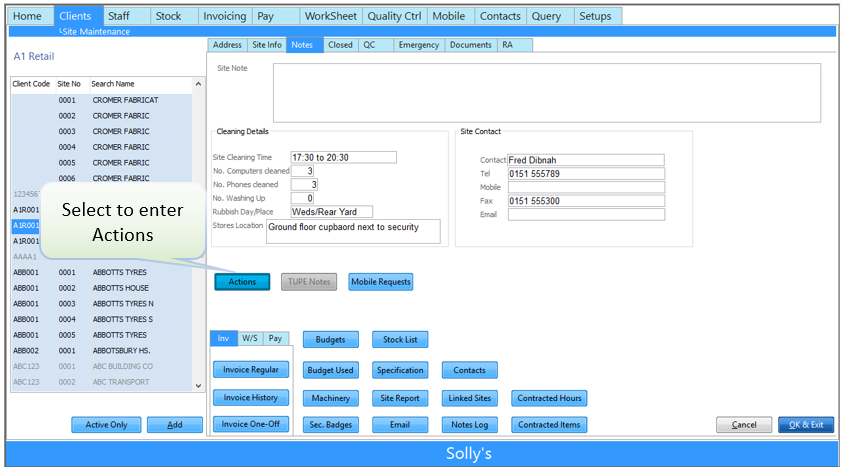
You can add actions by right clicking and selecting Site Actions or via Clients > B. Maintain Sites > Notes Tab. You will need to give your Users the security rights to View/Create Site Actions, depending on which Groups they are allowed to view a ‘View Actions Right x’ must be assigned. (See Setting Up and Maintaining Users for help on adding Rights).
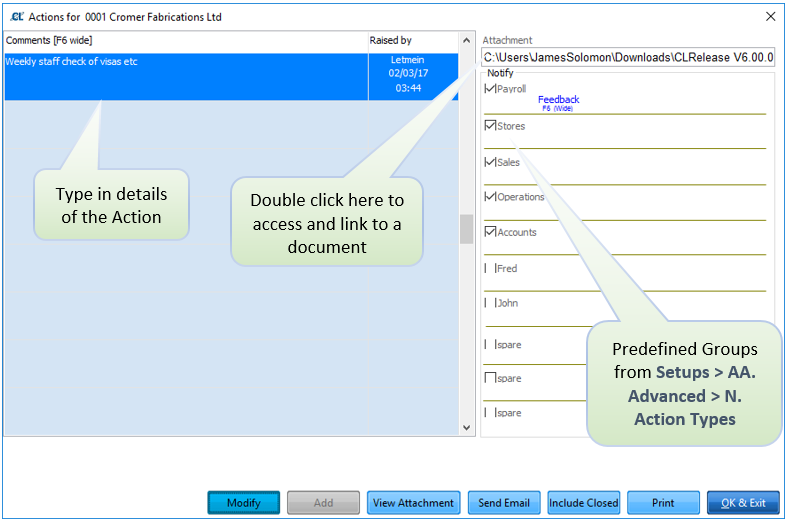
Once you have entered a description, you may tick the required Group needing notification and if necessary link to a specific document in any folder on your network by double clicking in the ‘Attachment’ box. You may also send an email using the Send Email button to the required recipients, remembering to attach any document at this point.
To close an Action, right click your mouse and go to ‘Warnings’, then go onto the Actions tab and tick the ‘Mark as Actioned’ box. Press the Action Marked Items button. The line will then disappear from the Actions tabs. (Note it will still appear in the Overview tab until you exit and re-enter the warnings program.)
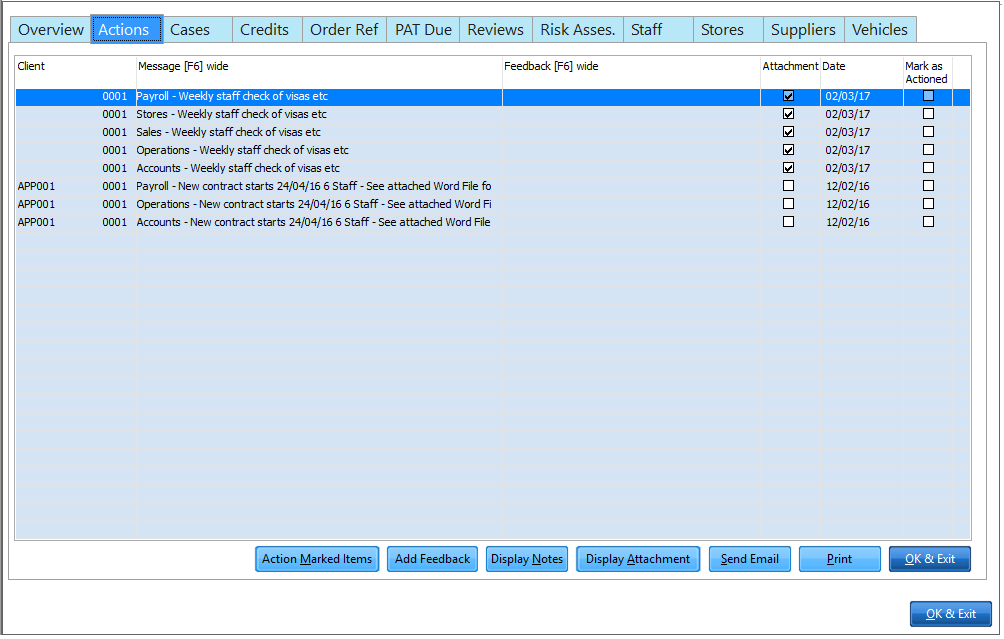

In the Site Actions button area you are able to see whom and when users marked the items as actioned.