Actual Site Margin |
  
|
Actual Site Margin |
|
The Actual Site Margin Report option gives you access to a range of reports on the profitability of the various entities within your company across a specific time period. Actual Site Margin Reports work using cycles in a similar way to the Payroll, Invoicing and other modules but unlike those it is possible to have multiple cycles open at once which enables you to rerun reports to take account of changes such as back dated invoices.
Each period of the Actual Site Margin Report will pull in the data from the relevant cycles in the other modules for that month. Where cycles straddle two reporting periods, such as a four weekly pay cycle that begins in one month and ends in another, the values from this period will be apportioned according to how much of the cycle was in each month, this is covered in more depth in the Running Actual Site Margin Reports section below.
Actual Site Margin Report Setups
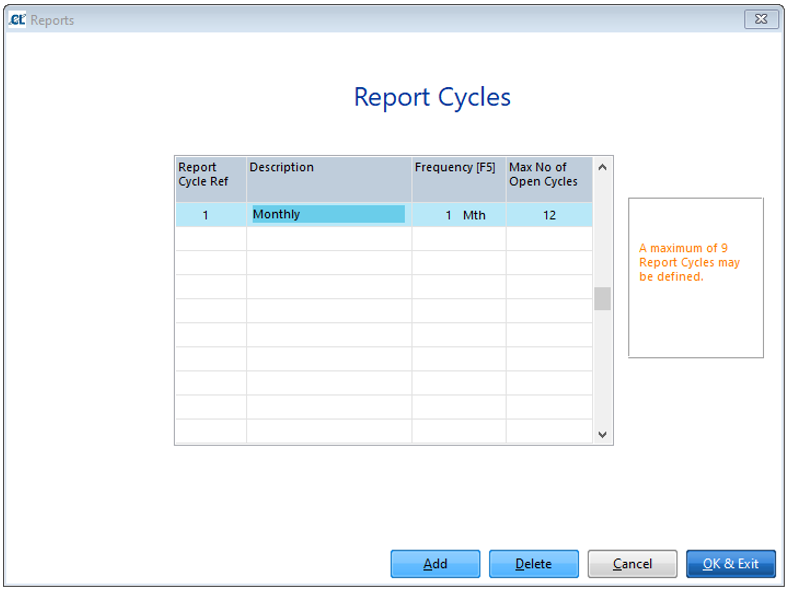
The Actual Site Margin cycles are setup via Setups > N. Report & QC Cycles > A. Report Cycles, by default you will have a monthly cycle setup which will be all that is needed in most cases. We recommend setting the Max No of Open Cycles to “12” as this will give the ability to have a rolling year of cycles open at any one time. If you feel that you would benefit from further/different reporting cycles please contact the Support Team to discuss this
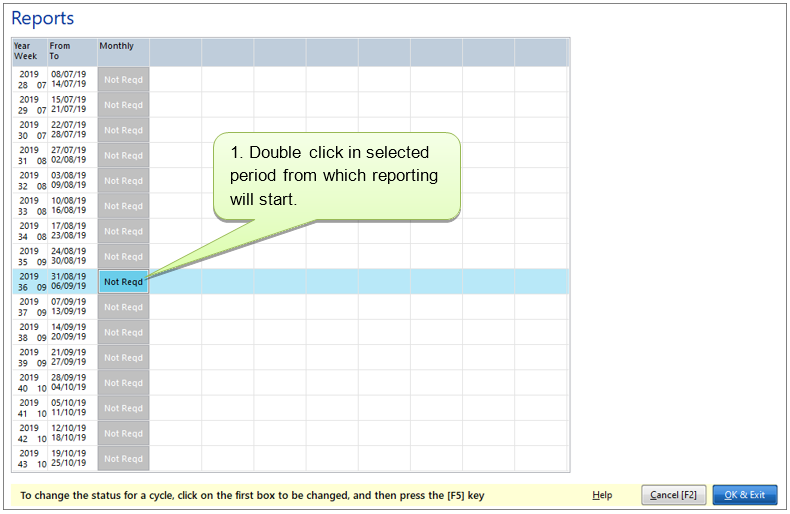
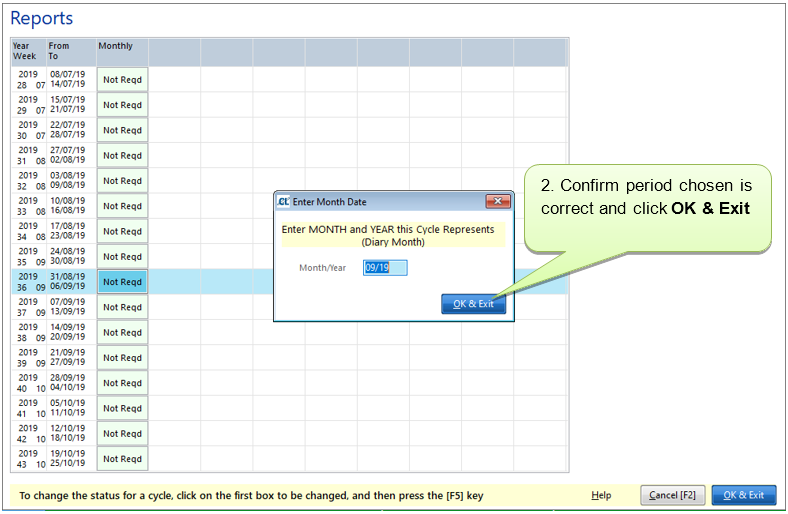
Before you begin to use the Actual Site Margin Reports you will need to set up the calendar for which periods are to be covered, this is done via Setups > P. Event Calendar > D. Reports. In this screen, select the “Not Reqd” field for the week containing the 1st of the month that you would like the reports to begin from and double click (in the example below we are starting the report cycle from September 2019). Please ensure that the correct period has been chosen before any cycles are run.
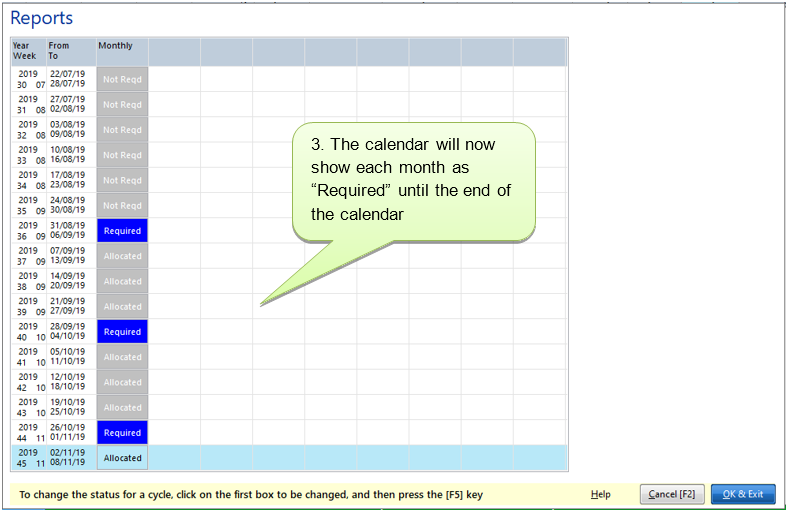
Please note that, as with other cycles, you will need to periodically extend the diary dates and the Event Calendar for your cycles. A help video to take you through this process is available here.
Opening the Report Period and Collecting Data
You can access the Actual Site Margin Report in three ways:
(a) Clients > I. Management Reports > O. Actual Site Margin Report,
(b) Pay > H. General Reports > O. Actual Site Margin Report
(c) Right Click > Management Reports > O. Actual Site Margin Report
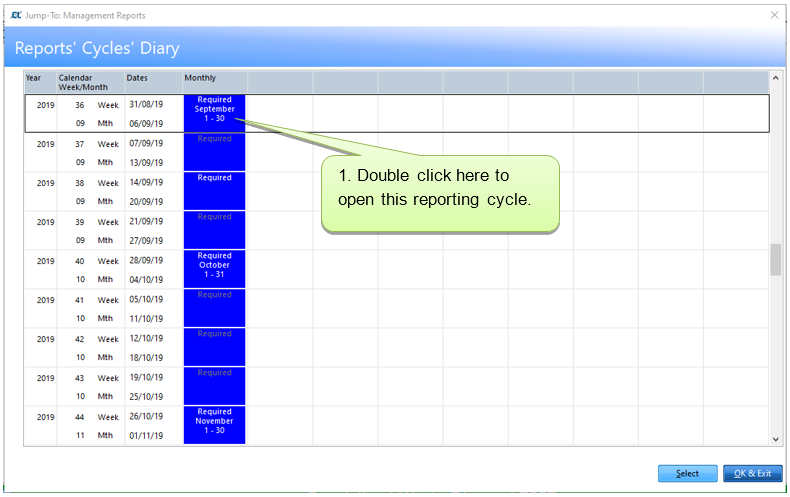
To open the period, double click on the first week of the period, unlike other cycle based modules, it is not necessary to close the previous period before opening a new one (subject to limits set in Setups > N. Report & QC Cycles > A. Report Cycles > Max No of Open Cycles).
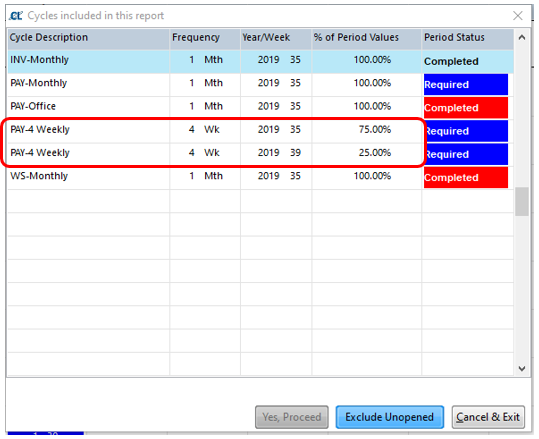
You will then be presented with a screen showing which periods from the various modules are to be included in this reporting period. Where periods straddle the reporting month as with the PAY-4 Weekly cycle below, this screen will show which percentage of that cycle will be included in the reporting, by default this will work in terms of whole weeks so a four weekly cycle will either show 25%, 50% or 75% if the whole period is not included.
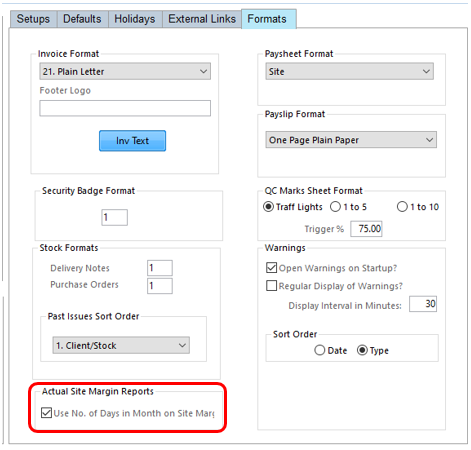
If you would like a more precise breakdown then you can use the option in Setups > B. Setups and Defaults > Formats as shown below which will look at exactly how many days are in the month from each cycle. Please note that this will simply use the stated percentage of all costs from the given period rather than looking specifically when the days fall as some costs are not directly linked to an individual day.
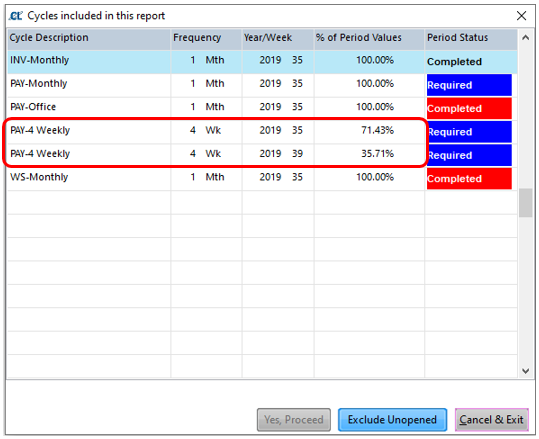
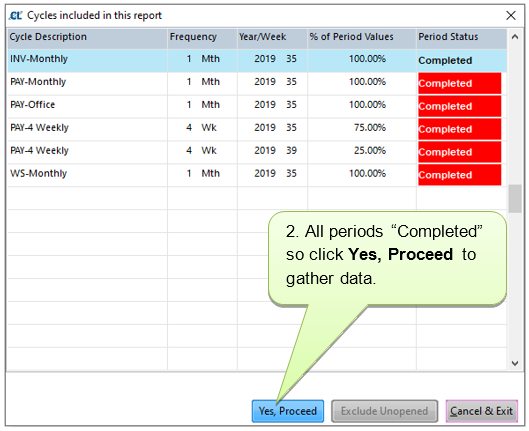
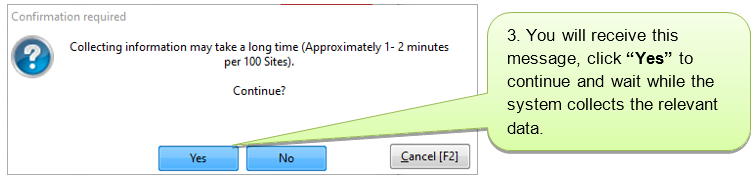
If all periods show as “Completed” you will be able click Yes, Proceed to collect the data, if some are still “Required”, “In Progress” or “Calculating” you will need to click Exclude Unopened to gather the available data now and recollect the data later when the relevant cycles have been completed. To exit without collecting data, click Cancel & Exit.
Re-collecting Data
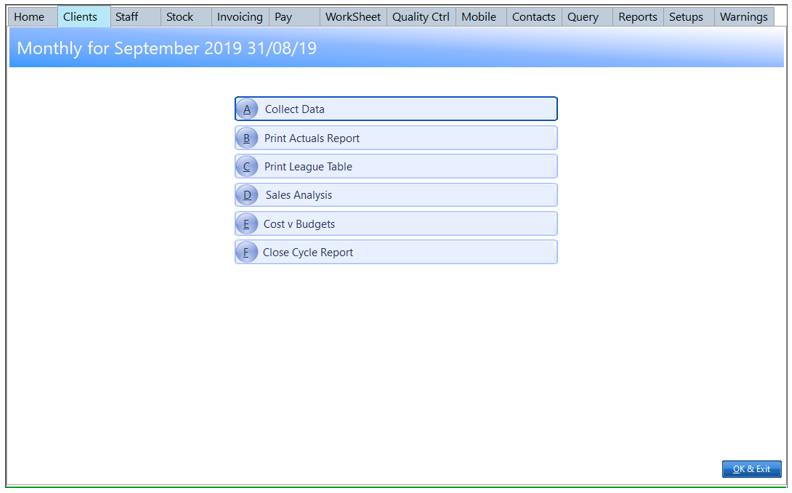
Once the reporting period is open you can recollect data as many times as needed as long as the Report Cycle is “In Progress” via Actual Site Margin Report > select required period > A. Collect Data. Remember, unlike other modules, you do not need to close one period before opening the next. Once a period is closed you will no longer be able to collect data for that period.
There are four different reports available within the Actual Site Margin Reports, please select the options below for further information on each.
This report shows the sales and costs associated with each site in the selected period and the Gross Profit Value as an amount and a percentage based on the information held. Sites that fall below the Target Contribution for the relevant division (set in Setups > D. Divisions > select division > Budget > Target Contribution) will have the Gross Profit Value Displayed in red.
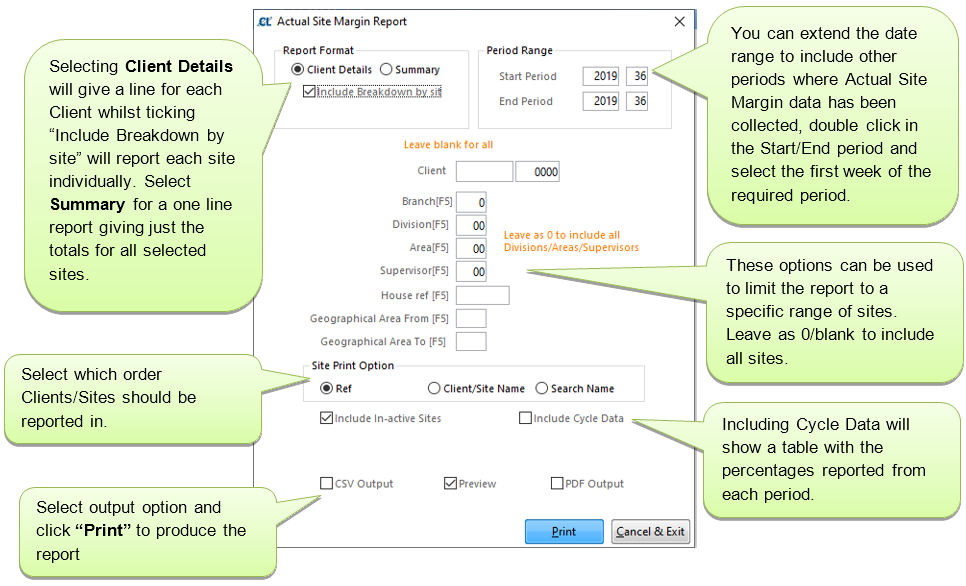
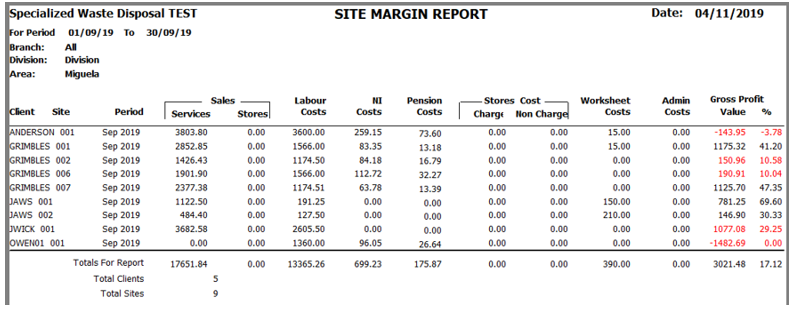
This report shows the sales and costs associated with each site in the selected period and the Gross Profit Value as an amount and a percentage based on the information held. The report can be ordered to display either Clients or Sites by turnover or Gross Profit percentage.

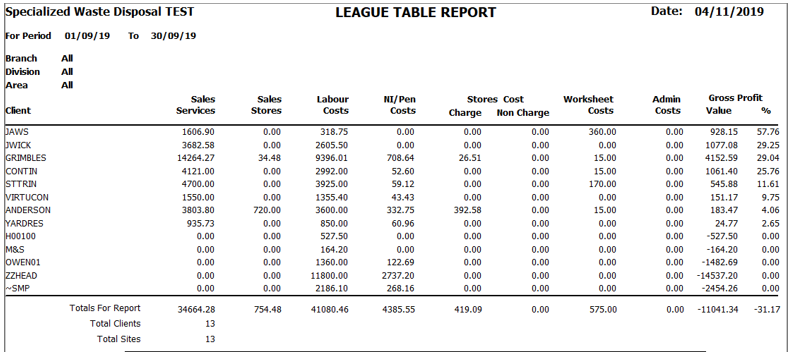
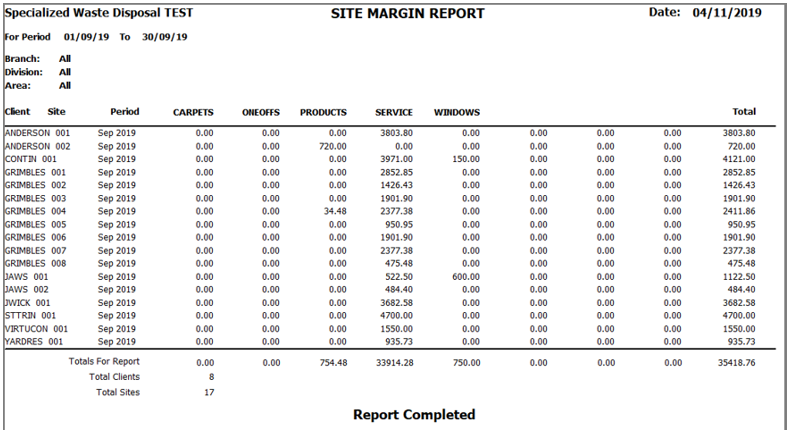
This report breaks down the sales recorded for each Client/Site according to the Sales Code attached to each item that has been invoiced. Sales Codes can be created in Setups > G. Sales Codes and must be attached to items in the main Stock/Service list (Stock > F. Setup & Maintain Stock/Service Items). There are eight columns available on the printed version of the report, if you have more than eight Sales Codes you will need to run the report as a csv to show all.
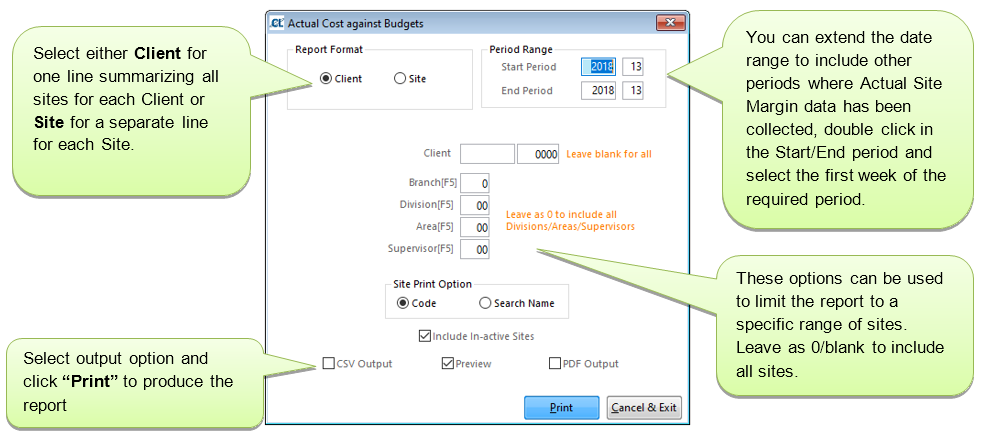
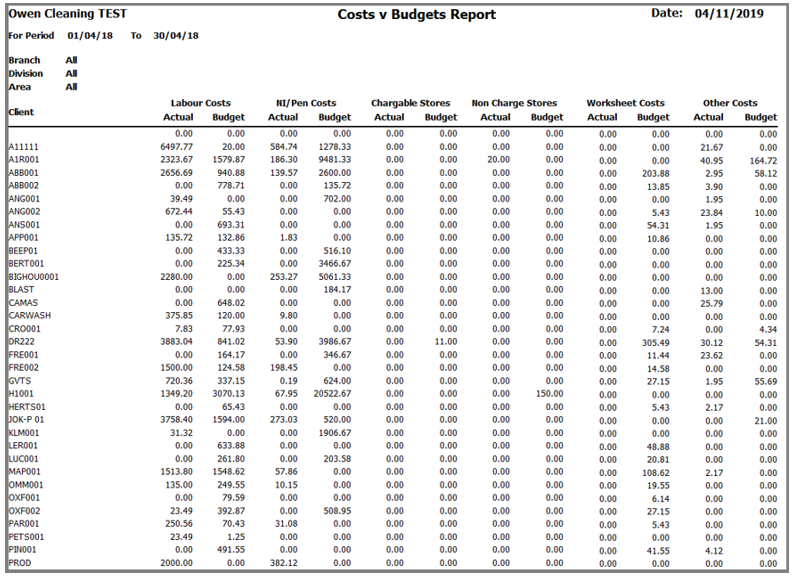
This report shows a breakdown of the costs and budgets by type for each Client/Site. Costs are apportioned to one of Labour, NI/Pension, Chargeable Stores, Non-Chargeable Stores, Worksheets or Other according to how the relevant cost codes are assigned in Setups > H. Cost Codes > Cost Type.
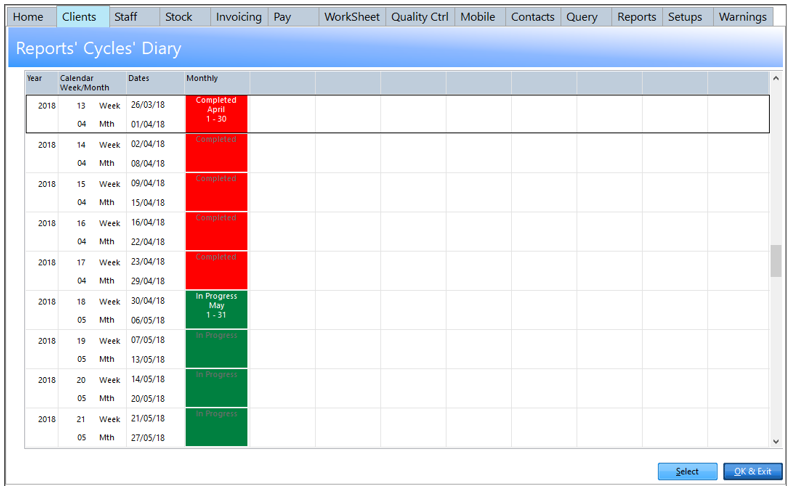
Once you are confident that it will no longer be necessary to collect further data for a period you can close the cycle by clicking F. Close Cycle Report, once this is done you will still be able to access the reports for this period but you will not be able to collect data. We recommend that you keep a rolling year of periods open and “In Progress” at any time so that (for example) you do not close January of the previous year until you are ready to open January of the current year. Once a period has been closed it will show in red on the Reports Cycles Diary screen.