Adding a Mobile |
  
|
Adding a Mobile |
|
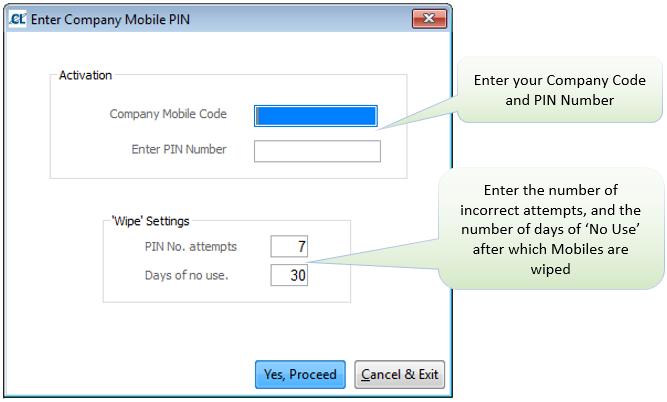
This will be set up for you by the CleanLink Support Team when you take up the CleanLink Mobile Service
Right Click and go to ‘About CleanLink’ and select ‘Update Mobile’
The Company Mode Code and PIN Numbers will be issued to you by CleanLink Support.
From the Setups > D. Divisions
When allocating mobile devices to your staff, you must be aware that Division Managers, Area Managers and Supervisors will only see those sites which they control. If you need staff to see All Sites they must not be set up as a Division manager etc. They must be a senior grade, e.g. Director or Office Staff.
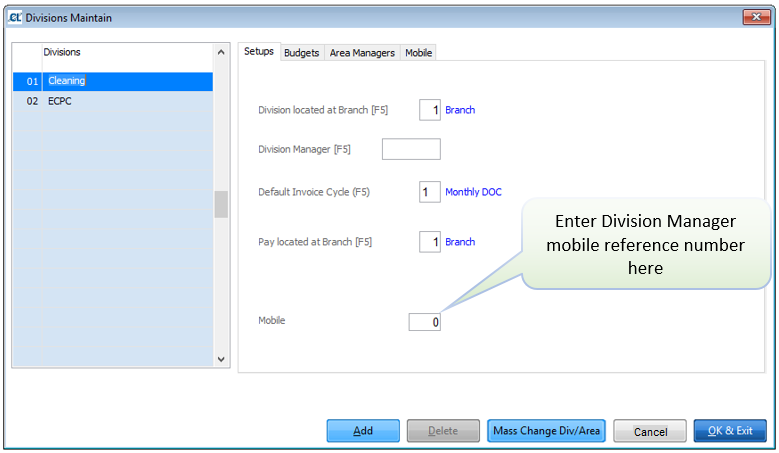
To assign a mobile to a Division Manager, select the Setup tab. Enter the mobile number against the Division Manager. They will only see information for all sites within their division.
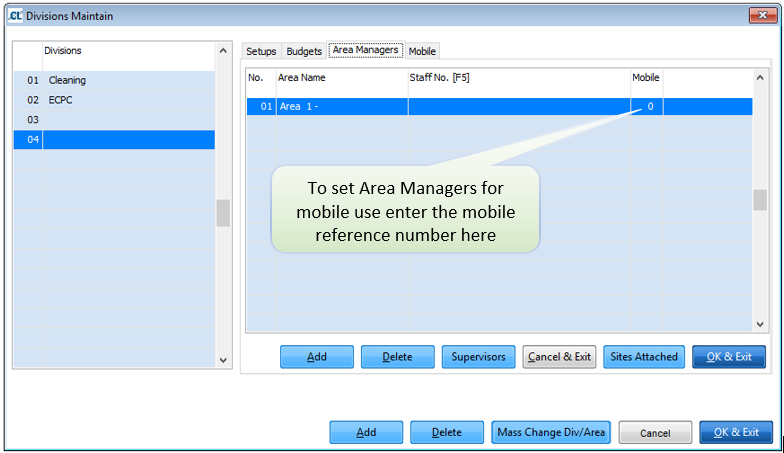
To assign a mobile to an Area Manager, select the Area Managers tab. Select the Staff No. column and double-click or press F5. Select an Area Manager from he list. Enter the mobile number against the Area Manager. They will only see information for all sites within their area.
To assign a mobile to an Area Supervisor, select the Area Managers tab. Select the Supervisors button. Select the Staff No. column and double-click or press F5. Select a Supervisor from he list and enter the mobile number against the Supervisor. They will only see information for all sites that they supervise.
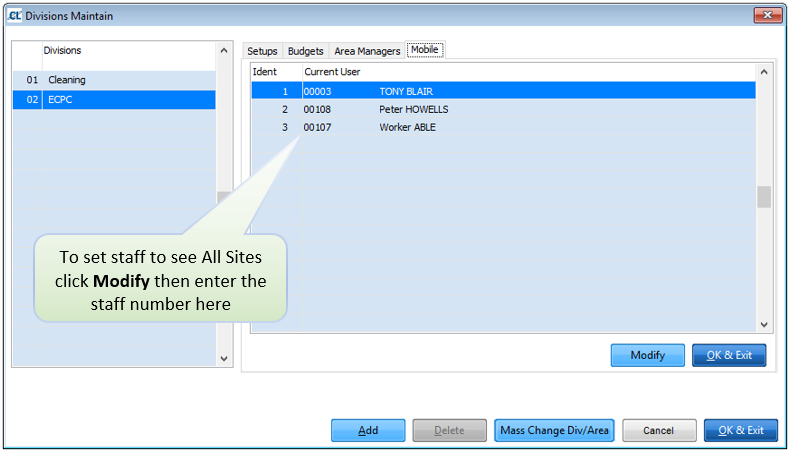
To assign a mobile to an Director or a senior staff member from Head Office, select the Mobile tab. The above screen will show all staff, Division Managers, Area Managers or anyone else who has a mobile allocated to them. Select the mobile device number from the list and enter the Staff No. in the Current User column. This user will see information for all sites within the company.
Setting up the CleanLink Mobile App on a Mobile Device
Apple Devices
(The example screens are taken from an iPhone. iPad screens are similar)
In order to use CleanLink Mobile on any Apple device it is necessary to have an account with Apple using ITunes. This requires the setting up of an ITunes Login and password. Once an ITunes account is established, use the Mobile you want to install the app on to go the App Store and search for 'CleanLink Mobile'. The App is free to download but you will need to enter your ITunes password to download it, as you do with any application

Once the CleanLink Mobile App has downloaded, tap the icon to start the App.
You will then be offered the choice to ‘Link Device to Site Manager' or 'Continue without linking'. Select ‘Link Device to Site Manager’

Android Devices
(The example screens are taken from an Android Phone. Android Tablet screens are similar)
In order to use CleanLink Mobile on any Android device it is necessary to download and install the CleanLink Mobile App. It’s easy to download and install Android apps on Google Play - just follow these steps for paid for, or free apps such as CleanLink. Make sure that you have strong connectivity on your phone or tablet at the time you push the download. Connecting your device to the computer via USB cable is not sufficient. It’s not possible to download the app first to your computer and then transfer the app later to your phone, or tablet.
Go to the Google Play Store, select the ‘Apps’ option then search for 'CleanLink Mobile'. (Free to download).
To install the app, tap the 'Download' button.
Tap 'Accept & download' to accept the permissions for the app (or press Back if you don’t want to download) - your item will start downloading immediately


When the application has started, you will be offered the choice to ‘Link to CleanLink Site Manager’ or continue with a demo. Select ‘Link to your data in Site Manager’ option
You will see the following screen. Enter the following information:

Linking the Mobiles to CleanLink Base/Site Manager Station
To make the Mobiles available to link, select the Mobile > A. Select Mobile for Export. Enter the mobile number and you will see the corresponding Staff member who you have assigned that mobile device number to.
Select System Command. Select Approve Link and the Send Command button as follows:
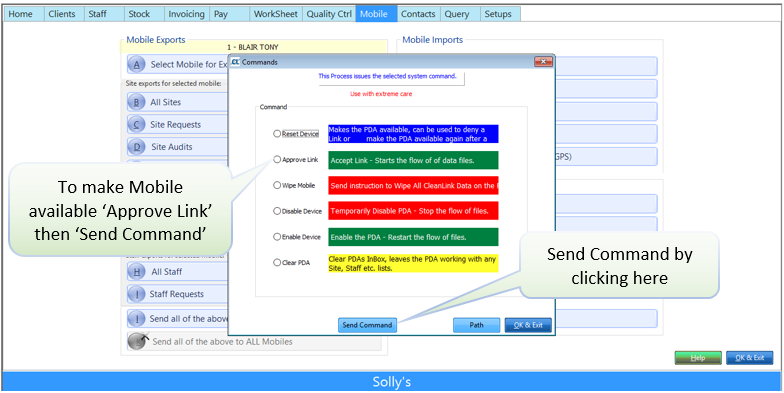
The Mobile device is now ready for use
You are now in a position to I. Send all of the above details to the selected mobile. Refer to Sending Data to a Mobile Device
