Change Employee Registered to a Device |
  
|
Change Employee Registered to a Device |
|
Changing Employee Registered to a Device
This process changes the employee that is registered to a specific license number within CleanLink. Before undertaking any of these changes, please ensure that all required data is synced from the device back to CleanLink before starting, as unsynchronised data in the device’s inbox or outbox will be lost.
At any point, you can see which mobiles are allocated to which users through the Mobile tab – Navigate to Setups > D.Divisions > Mobile tab. Please note that this list will only update any changes when you go out of Divisions Maintain, so you will need to go out and then back in again to see any changes.
You can also see which sites are attached to specific Area Managers by going to Setups > D.Divisions > Area Managers tab > Select Division and Area > Sites Attached.
Directors, Office Staff and staff without a record in CleanLink will all have all-site visibility unless they are set up with a dummy staff record.
Add/Remove Device from Division Manager
There can be only one Division Manager for each Division. Navigate to Setups > D.Divisions > Setups tab.
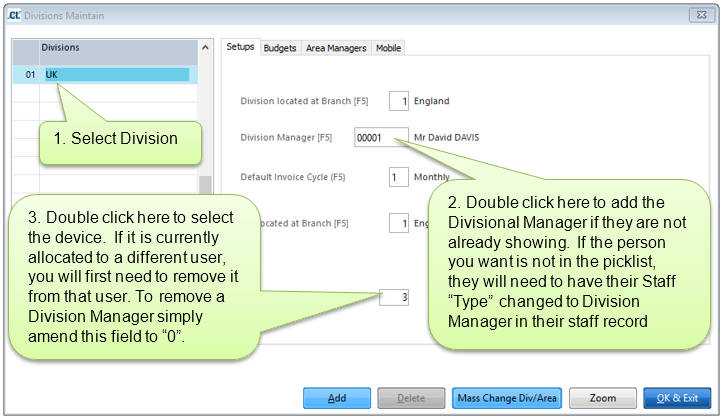
Add/Remove Device from Area Manager/Supervisor
Devices are allocated to or removed from Area Managers through the Area Managers tab. Each Division (selected in the left-hand pane), can have multiple Areas and therefore Area Managers (set in the right-hand pane), however each area can only have a single Area Manager. If you want to have multiple mobile devices operating within a single area, they must either be set up as supervisors (see note below), or as Office Staff/Directors (with all-site access)
Navigate to Setups > D.Divisions > Select Division > Area Managers tab.
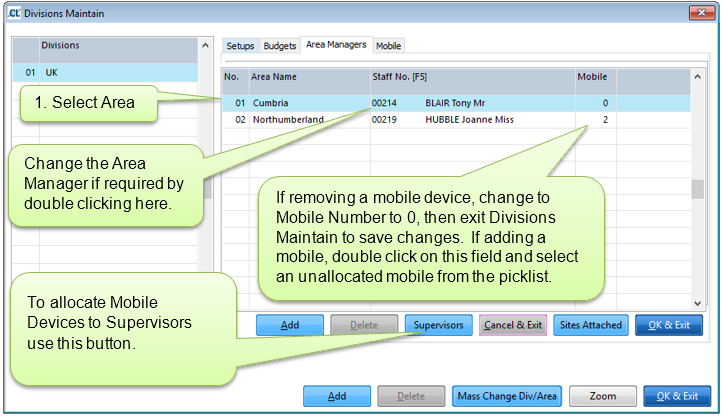
The procedure for setting up mobile devices for Supervisors is the same as the procedure for setting up Area Managers except that it is done through the Supervisors button at the bottom of the Area Manager’s tab.
Add/Remove Device from Director/Office Staff/ Staff not on CleanLink
For staff who are set up as Directors or Office Staff, or do not have a staff record in CleanLink, you will need to allocate or remove devices directly through the Mobile tab – these users will have all-site access.
If you wish to create users as above who have site access restricted to a certain area/division, you will need to set up a dummy staff record for them. Reasons for creating dummy staff records could include staff who are paid through a different payroll system, subcontractors who require mobile devices, or a decision to use employee names on mobiles rather than employee numbers. For details on how to set up dummy records please see “Creating Dummy Staff Records”
You cannot remove or allocate Devices to Divisional Managers, Area Managers or Supervisors through this screen. Please refer to the “Add/Remove Device from Division Manager” and “Add/Remove Device from Area Manager/Supervisor” sections.
Navigate to Setups > D.Divisions > Mobile tab
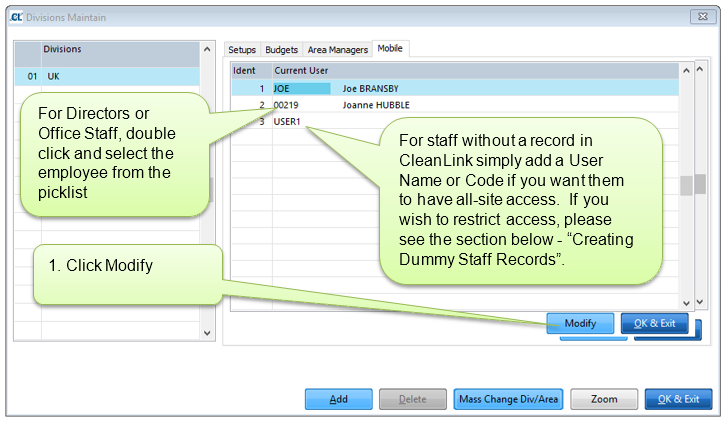
It is possible to restrict site access to a specific area for an employee who does not have a record in CleanLink or allow them to view all sites on their Mobile Device, however you will first need to create a Dummy Staff Record following these steps.
1. Navigate to Setups > B. Setups and Defaults > Setups tab > Staff Numbering Convention, and change the Staff Numbering System to 3 – Free Entry. Before doing this, please ensure that nobody else is adding new staff or will add new staff while this is set, as a correct automatic payroll number will not be generated.
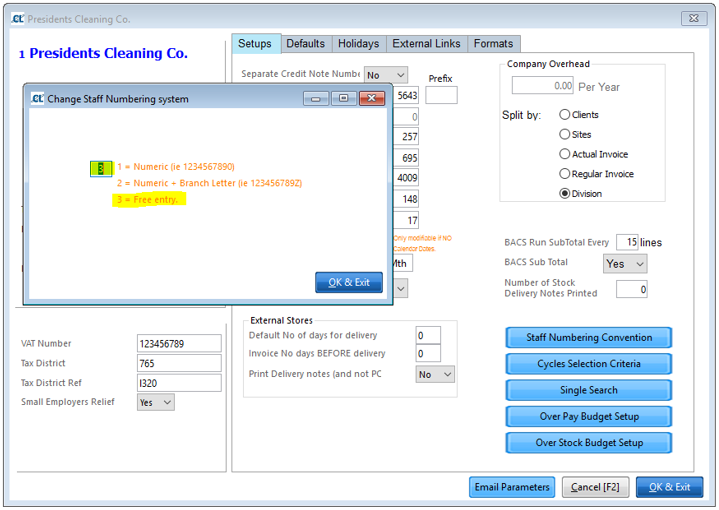
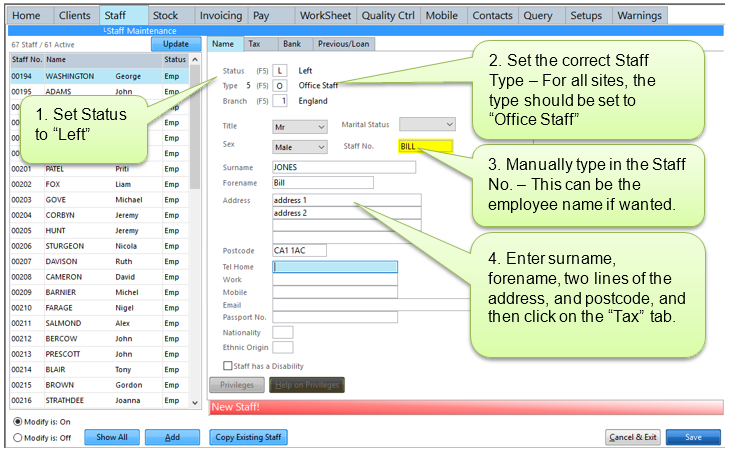
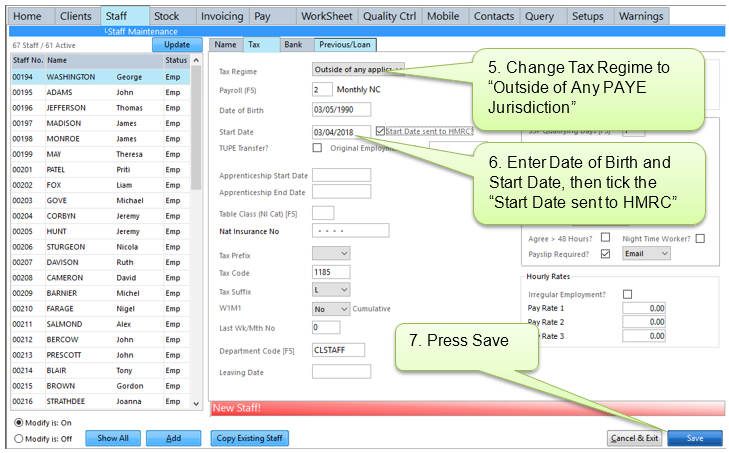
2. Create a new Staff Record by going to Staff > B.Staff Maintain > press “Add” and follow the below instructions.
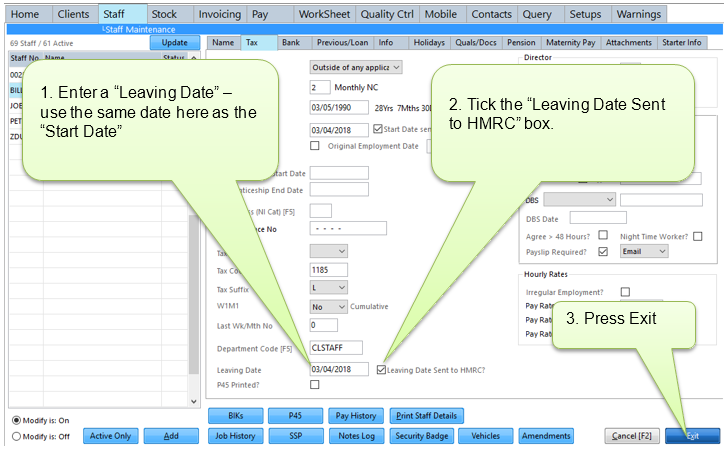
Press “Show All” in the Staff Maintain Screen and select the saved dummy record.
3. Navigate to Setups > B.Setups and Defaults > Setups tab > Staff Numbering Convention, and change the Staff Numbering System back to Option 1 – ‘Numeric’.
Dummy Staff Records which are set as Office Staff or Director will see all sites and must be allocated to a mobile device through Setups > D.Divisions > Mobile tab.
Dummy Staff Records which are set as Division Manager will need to be allocated via Setups > D.Divisions > Setups tab (see “Add/Remove Device from Division Manager”).
Dummy Staff Records which are set as Area Manager or Supervisor will need to be allocated via Setups > D.Divisions > Area Manager tab (see “Add/Remove Device from Area Manager/Supervisor”).
