Holiday Pay Setup |
  
|
Holiday Pay Setup |
|
Take the standard 20+8 days holiday allowance: Decide whether the holiday days total includes or excludes Bank Holidays. To answer the employees question ‘How many days holiday do I have left?’, it is best to use ‘Exclude Bank Holidays’ and make the number of days holiday 20.
By setting up Staff with 20 Days Holiday and making the field ‘Inc Bank Hols in Days Taken’ =’No’, the new field ‘Days Outstanding’ easily shows the number of days holiday still to be taken. Note – Bank Holidays are still added to the ‘Holiday Log’ tab and shown on reports when paid.
Change the default in setups to reflect the above by going to ‘Setups > 2.Setups and Defaults > 'Holidays’ tab. All new employees will inherit the defaults. See section 4 below for more information.
To include Bank Holidays see section 6. Auto Bank Holidays below.
2. Accrue Holidays on All or Regular Jobs Only
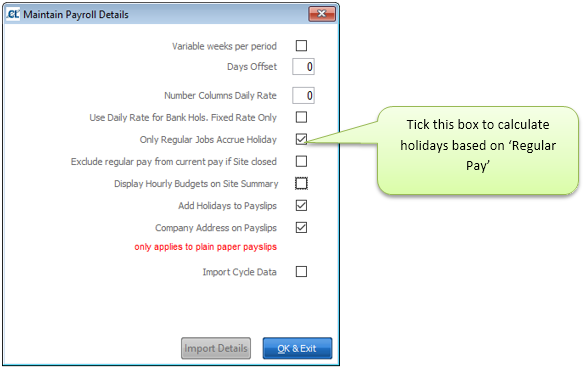
Go to Setups > 11.Pay Cycles > Details button and tick the ‘Only Regular Jobs Accrue Holiday’. If this is NOT ticked, All jobs will accrue holiday.
Irregular staff can be individually overridden on their Staff record in the 'Holidays' tab.
3. Print Holidays Accrued on Payslips
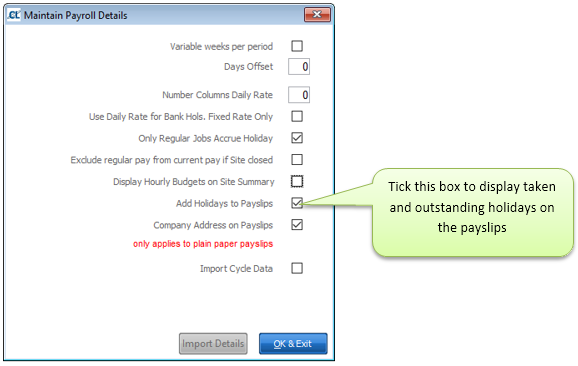
Go to Setups> 11.Pay Cycles> Details and tick ‘Add Holidays to Payslips’. If this is ticked, accrued, taken, and outstanding holiday will appear on the payslip, site by site.
Note: This only applies when using ‘One Page Plain Paper’ payslip format.
4. Defaults - What New Staff Inherit
When a new employee is entered onto the system they will inherit the defaults set up for the company. To set the company defaults go to Setups> 2.Setups and Defaults> Holiday tab. Defaults for an individual employee can be changed by going to Staff> Holidays tab.
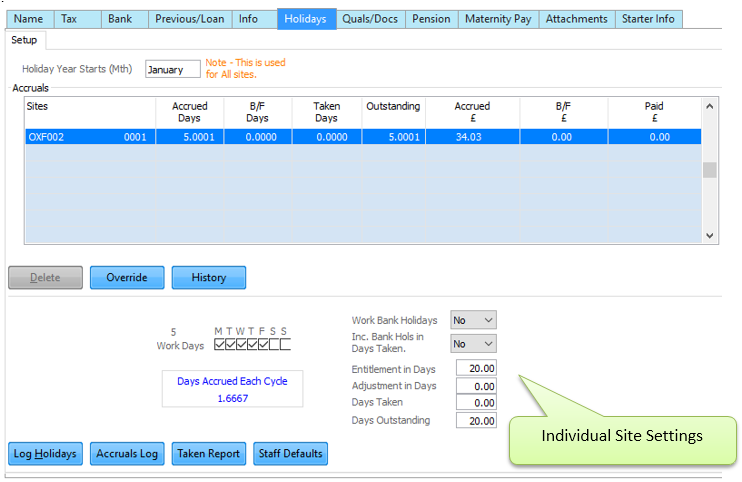
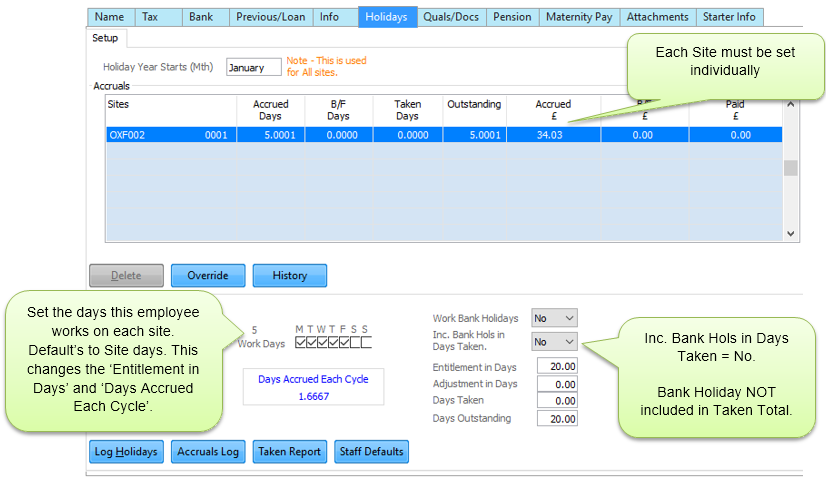
The way accruals are setup for individual sites determines the figures used in all calculations. This allows for instances when different sites work a different number of days a week.
Holiday Adjustment Days
This field is used to adjust the amount of days holiday received without changing the annual entitlement. The main use of this is for pro-rata holiday allocations in the first year, For Example, if some is entitled to 20 days and joins half way through the holiday year then this field would be set to minus 10. The field can also be used for additions (i.e. Carry forwards on TUPE transfers). Currently this data is manually set. The data is set to zero during the ‘Holiday Clear Down' process.
Go to Staff> Holidays tab. See the area of the screen headed ‘Accruals’ this shows all the sites this employee has worked on. The details below relate to the site surrounded by the thick black line. This is the most important part as each site is handled individually, these are the figures that are used for each calculation.
If Bank Holidays are included in the annual entitlement, the day’s money will show on the pay slip as 'Bank Holiday(s)'. A full days holiday pay will be paid, even if the accruals to date are not great enough. The Holiday Pay record will show negative figures until enough entitlement has been reached to cover the amount paid. This allows you to pay the full weeks money when there is a Bank Holiday in the week, and hopefully stop a lot of phone calls as to why the Bank Holiday was paid at less than the daily rate.
Below are 3 examples of different setups:
1. 20 Days Holiday
In this example Bank Holidays are EXCLUDED in Taken Days.
2. 28 Days Holiday with Bank Holidays Included (20+8)
In this example bank holidays will be INCLUDED in Taken Days.

3. Employee Works Bank Holidays.
In this example ‘Auto Bank Holidays’ will NOT be processed because they work on Bank Holidays.
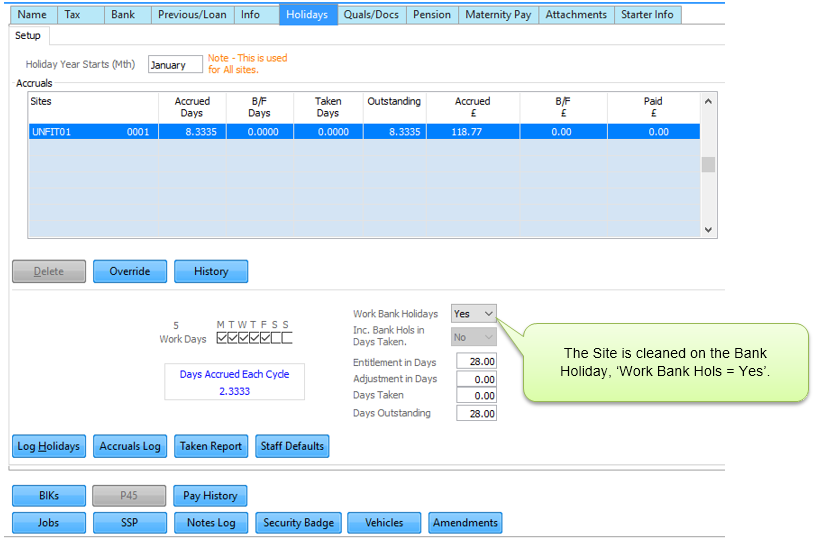
To pay Bank Holidays automatically you need to do the following:
•Flag Date in Diary as Bank Holiday
•In Staff record ensure ‘Work Bank Holiday = NO’ for each site. As shown in section 5. Examples 1 and 2 above.
Set Bank Holiday days by going to Setups>15. Diary Dates.
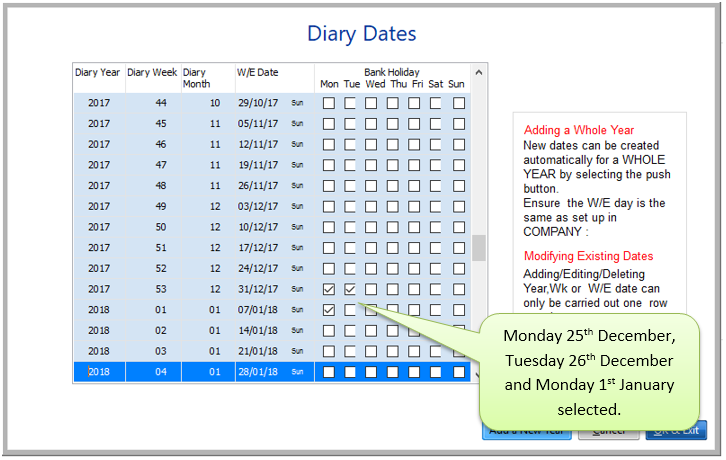
Tick any day you want to be treated as a Bank Holiday. This will create an entry in every staff members Holiday Log for each Bank Holiday. The Bank Holiday will only be applied if the days worked on site and the site settings call for it to be paid. See section 5. 'Days Worked On Site' above. By un-ticking a Bank Holiday it will be removed from each staff members log and new staff added after ticking a Bank Holiday will inherit ticked bank holidays. Both of these procedures must be done BEFORE a Pay Cycle is opened.
7. Pay Items that Accrue Holiday Pay
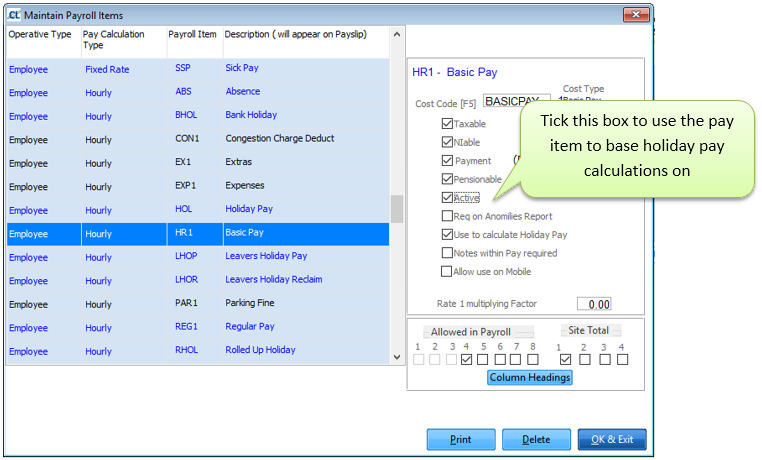
You need to decide which Pay Items accrue Holiday Pay. We would advise that Regular Pay and Holiday Pay should accrue holidays.
It is your decision if Overtime, Cover, Towels etc are included. Holidays are accrued by ticking the box in Setups> 11. Payroll Cycles> Pay Items> Select Item> Use to Calculate Holiday Pay
8. Rolled up Holiday Pay (RUH)
The object of Rolled up Holiday (RUH) is to pay staff their holiday entitlement as they earn it. This is particularly advantageous for staff with irregular hours, i.e. seasonal workers. The function of holiday accruals and payments will work as it does currently within CleanLink. It is assumed these will not be used for RUH staff. This may cause problems with holiday reports/outstanding holidays. RUH will appear on the payslip the same as any other pay item.
To make RUH available you must enable it by navigating to Setups > Setups & Defaults > Holidays.

RUH will only be applied to selected staff at selected sites. You can make RUH the default option for an employee through Staff > A. Staff Maintain > Holidays > Staff Defaults as shown below. For existing jobs you will also need to amend the regular pay record.

To add RUH to existing jobs, return to the Address tab to save the settings the click on the Jobs button.
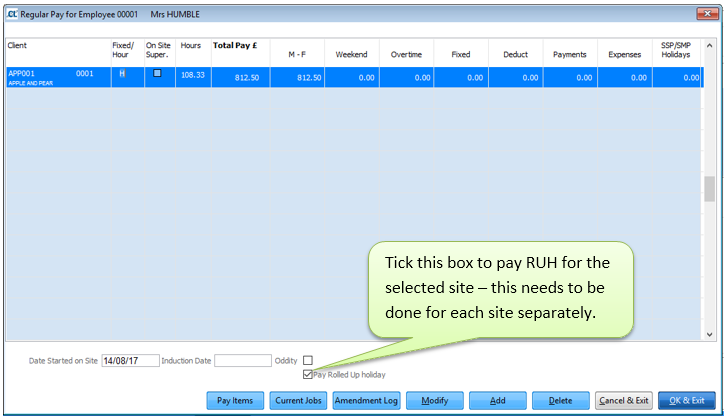
When opening a pay cycle the program will look at the settings for each staff and using the data fields decide if RUH is to be applied. If so the value, based on the regular pay and RUH percentage will be calculated and added under Pay item RHOL. This can then be amended in the usual way within the pay cycle.
The process to check for RUH will also be run after any timesheet imports.
During the payroll cycle when staff hours are modified checks will be made to determine if RUH needs to be applied. The main criteria are to catch cover staff and seasonal staff. In both cases the Accrue Holiday on all sites flag will be checked. If set then RUH will be calculated based on the actual hours worked, providing staff have no regular hours at that site. These checks will be made every time staff hours are changed.
The criteria for deciding if RUH is payable is
1)RUH flag set in Regular pay OR
2)Staff set to RUH and accrue at all sites OR
3)RUH already calculated for staff in this cycle
The payment is calculated as follows
1)If staff have regular pay on site the payment is calculated as regular hours * Regular rate * RUH percentage
2)If staff have no regular hours or have ‘accrue at all sites’ selected the payment is calculated as actual hours * actual rate * RUH Percentage.
NOTE - if regular pay for monthly is used the calculation is based on 52/12 of weekly value so may cause some rounding differences.
