Maintaining Stock |
  
|
Maintaining Stock |
|
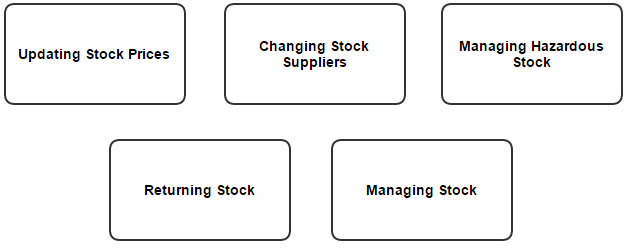
Click on the boxes below to go to the corresponding subject area.
There are several ways to update selling prices:
Individually via Stock > F.Setup & Maintain Stock/Service Items then amend the ‘Sale Price per Pack’ field.
Via the Site record Clients > B. Maintain Sites > Site Stock List this is the Site Special Price only.
Globally using a percentage via Stock > F.Setup & Maintain Stock/Service Items > Special Prices as before.
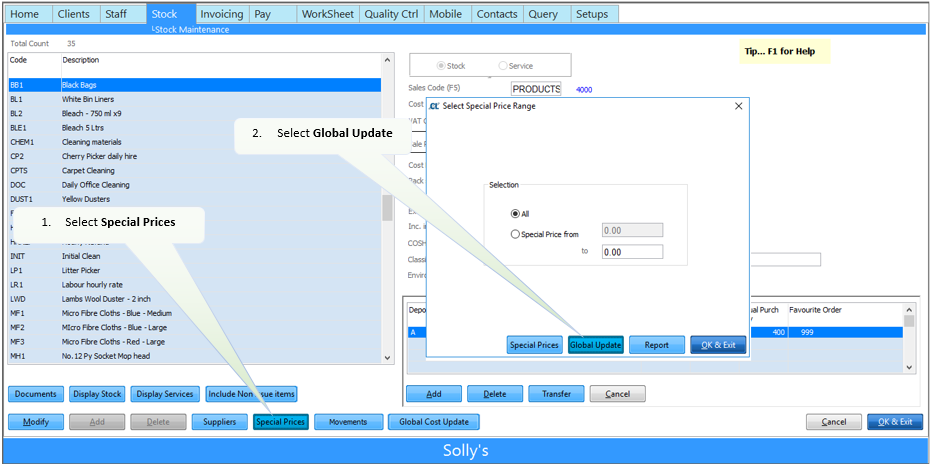
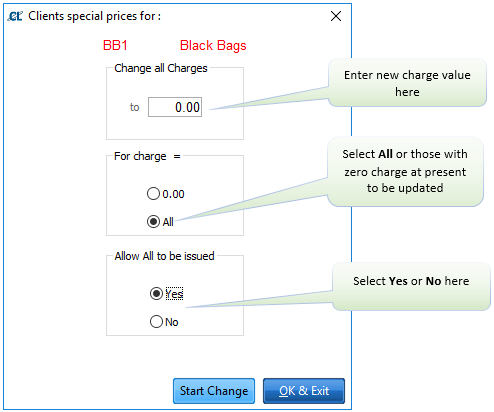
To globally update all charges for all products use Setups > AA. Advanced > E. Price Increases
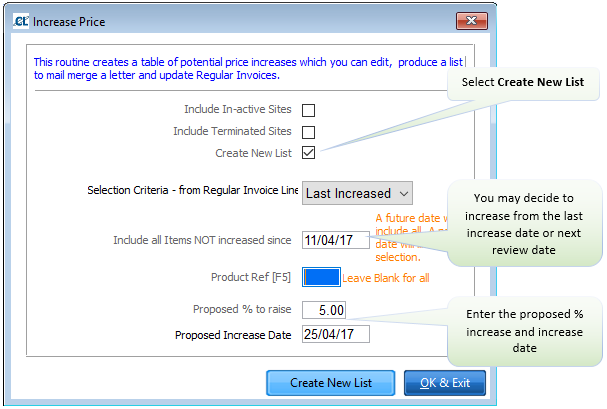
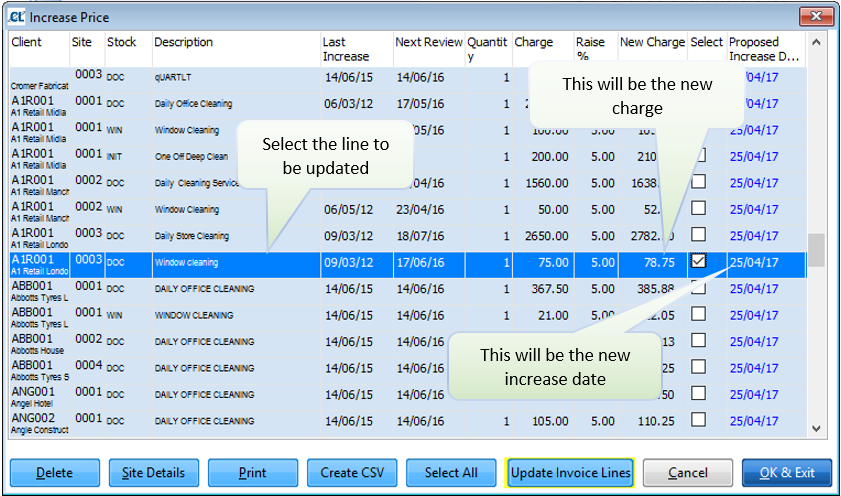
The following table will open showing invoice lines, some of which may be stock products. In the example below the price of Window Cleaning at Client/Site AIR001 0003 will increase on 01/09/15 from £75.00 to £78.75. To select the invoice lines to be updated tick the ‘Select’ box and press the Update Invoice Lines button.
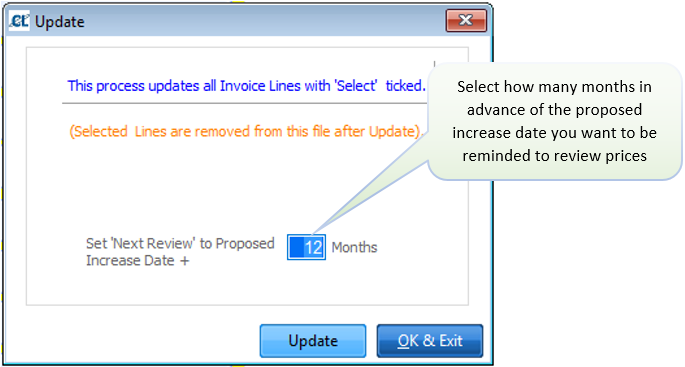
Press the Update Invoice Lines button and the following box appears:
If you wish to change which supplier supplies a certain product you may first need to set up a new supplier, see Setting up Suppliers for further details. I you wish to use an existing supplier, follow these steps.
Go to Setups > E. Suppliers/Contrctrs/Vans
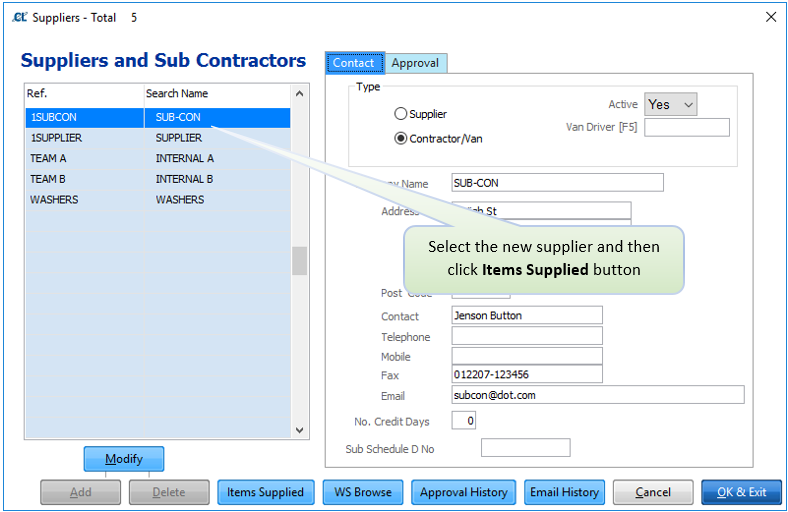
Click Modify then Add, you can add from the main stock list, those items that the supplier supplies, by clicking F5 whilst in the ‘Stock Ref’ field as below:

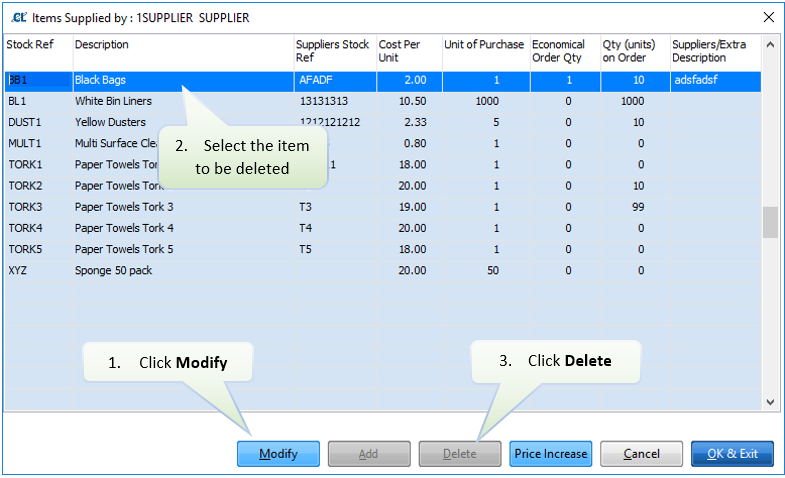
You can now either delete the old supplier or delete the items from their Items Supplied.
To delete the items go to Setups > E. Suppliers/Contrctrs/Vans > (select supplier) > Items Supplied.
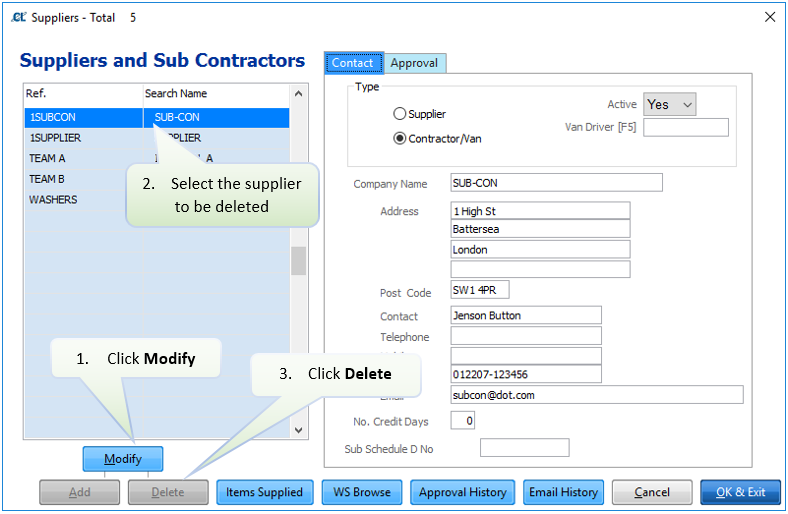
To delete a supplier go to Setups > E. Suppliers/Contrctrs/Vans
In some cases, you may wish to return stock which has been previously issued to your customer. In this case go to Stock > B. Return Stock from Site. Select the Client and Site and click the OK button. A list of all stock previously issued will appear on a line by line item basis as below:
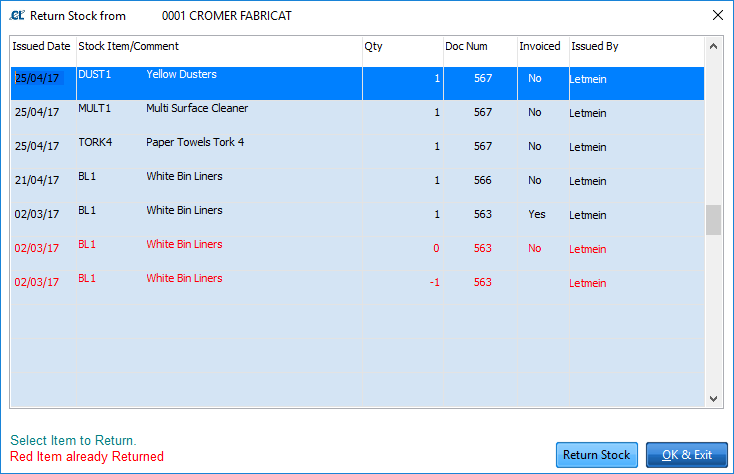
By selecting a line and clicking on the Return Stock button the screen below will appear:
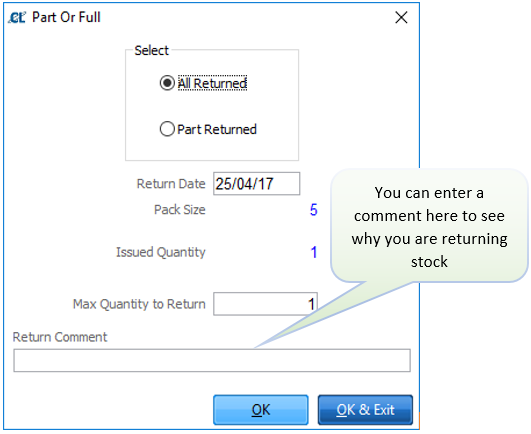
If the quantity is greater than 1 then you may return part of that quantity to your supplier. At this stage a credit note is generated for Invoicing when a CHARGEABLE item is returned if an item has been already invoiced, otherwise just a credit line is created in Stock > D. View Past Issues.
A historic record of all stock issued and returned is held and can be viewed via the Past Issues button. Go to Stock > D. View Past Issues. See an example of the screen below:
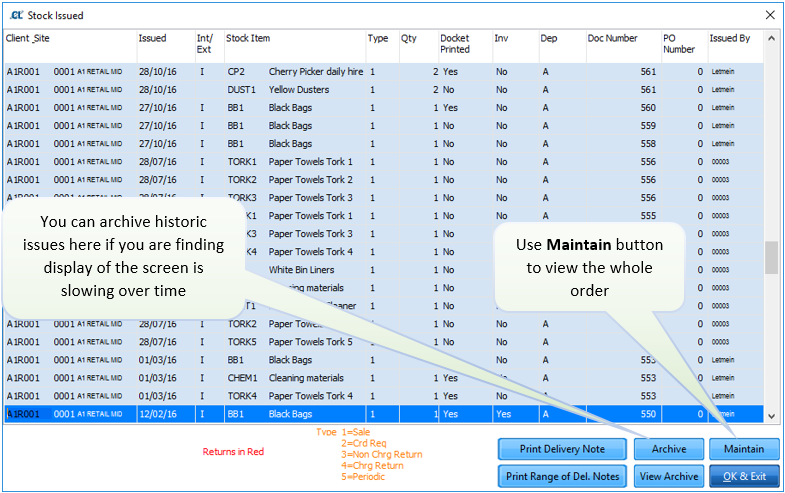
The Past Issues screen holds details by column of all stock movements. Site, whether an Internal or External issue, the stock item and code, type (1=sale, 2=credit required, 3=non chargeable return, 4=chargeable return, 5=Periodic), quantity, printed or not, invoiced or not, depot, document number (your doc ref), PO number and user who actioned the order.
The Maintain button can be used to bring up the details of the order and amend them as necessary.
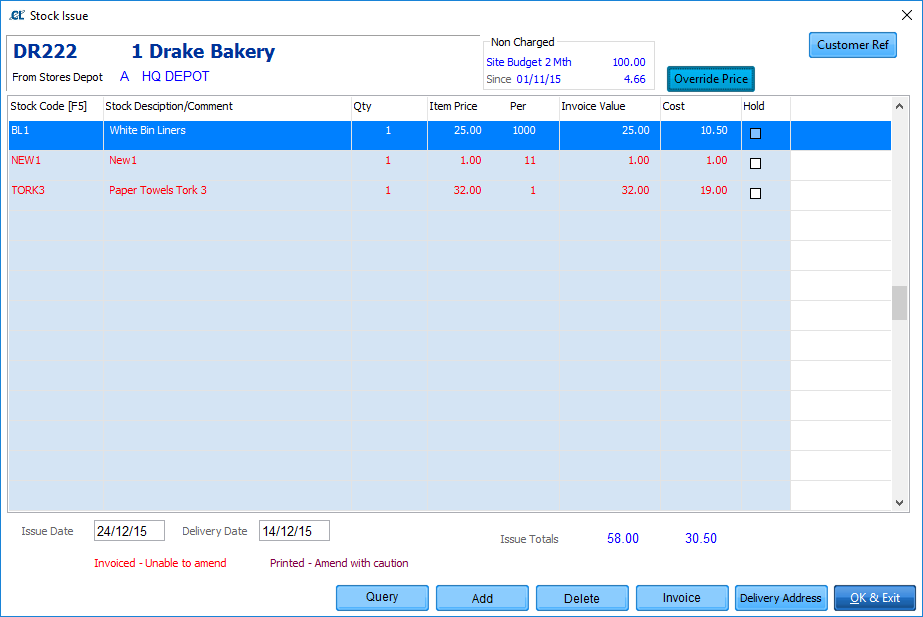
The text in the above image appears in Black, meaning it has not yet been invoiced. Text in Red would mean the order had been invoiced. Text in Purple would mean the purchase order/delivery note had been printed.
'Add' - can be used to add extra lines to this order.
'Delete' - can be used to delete lines not required.
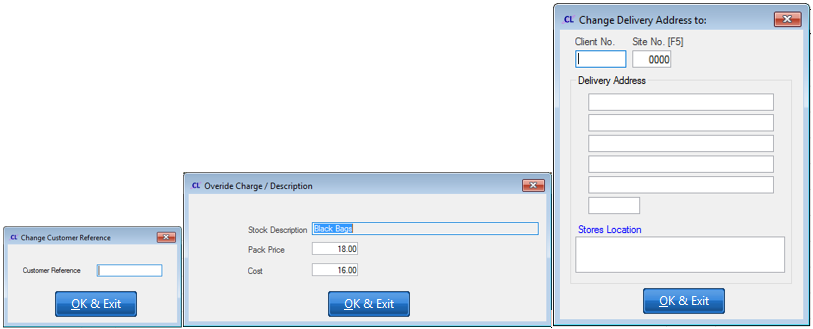
'Customer Ref' - allows you to add a purchase order reference or similar which is printed on the order. (See image below)
'Override Price' - can be used to override the description, sale price and/or cost price for a particular item. (See image below)
'Delivery Address' - this can be used to override the current delivery address. (See image below)