Setting Up Time & Attendance Parameters |
  
|
Setting Up Time & Attendance Parameters |
|
Setup
The interface is enabled via the Setups menu. Select Setups > K. Payroll Cycles > Details .

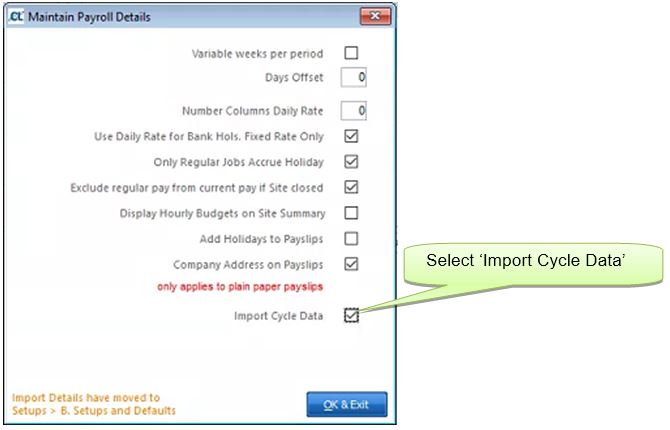
Now navigate to Setups > B. Setups & Defaults > External Links to create the interface.
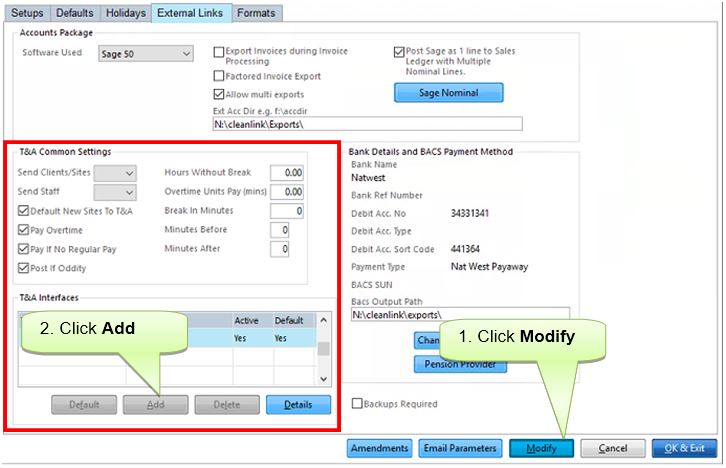
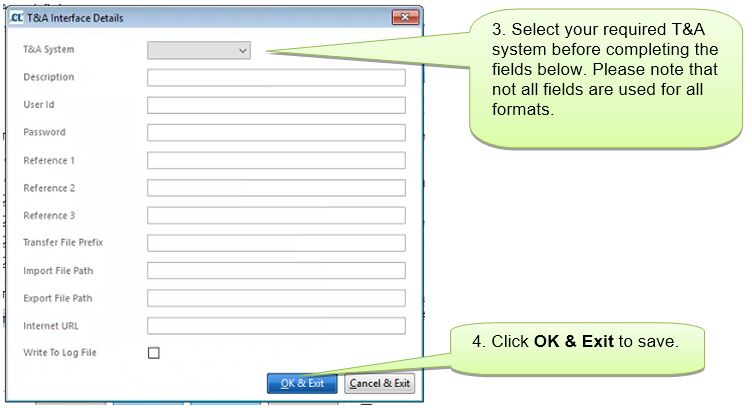
Description: The name you would like to use to identify the T&A System within Site Manager.
User ID: Issued by the T&A provider, essential for systems that need to communicate directly to another system (eg: Ezi-tracker)
Password: Issued by the T&A provider, essential for systems that need to communicate directly to another system (eg: Ezi-tracker)
Reference 1, 2, 3: These fields vary depending on the chosen T&A System, only enter details as directed by your T&A provider or Cleanlink Support.
Transfer File Prefix: If set then any files produced by SiteManager for this T&A system will have a selected prefix. Useful for identifying the correct files if you have multiple systems.
Import File Path: For systems where there is not a direct interface with the T&A provider, this identifies the file path where files should be placed ready to be imported into SiteManager. Once the files have been placed in this folder they will be imported into the system the next time Get Data is clicked and the relevant T&A system selected.
Export File: For systems where there is not a direct interface with the T&A provider, this identifies the file path where Sitemanager will create any files that then need to be uploaded toyour T&A provider.
Internet URL: Provided by the T&A provider where there is a direct link between the two systems.
Write to Log File: If ticked then a log will be created detailing all files created by SiteManager for the T&A provider.
Selecting a T&A System and then pressing the T&A Details button will then display the T&A Details screen
NOTE while it is possible to set the Import Cycle data for each payroll, there is only one set of Ezi-tracker details.

If this is set to zero then any staff working less than their contracted hours will only be paid for the time they work. For example if staff regular hours are 2 and their worked time is recorded at 1:58, they will be paid 1:58.
If this is set to a number then this is used as a tolerance. If the timed worked is within this tolerance, they are paid their regular hours. If it is outside, they are paid the timed worked.
For example, if this was set to 5 and the regular hours are 2, then if they worked between 1:55 and 1:59 they would be
paid 2 hours, if they worked 1:54 or less they will be paid what they worked.
If this is set to zero and their recorded timed worked is more than their regular hours they will be flagged as an exemption and manual intervention will be required (subject to the setting of Pay
overtime).
If this is set to a number then this is used as a tolerance. If the worked time is within this tolerance they will be paid their regular hours.
For example if the minutes extra are set to 25 and their regular hours are 2, then if their recorded hours worked is between 2:00 and 2:25 they will be paid 2 hours.
If it is greater than this they will be flagged as an exemption and manual intervention will be
required (subject to the setting of Pay overtime).
This parameter is set in Hours. If non zero then should any worked hours that exceed this value will be reduced by the length of break to deduct which is in minutes.
For example if these parameters are set to 6 hours and 30 minutes and the hours worked is returned as 8 the hours the’ to be paid’ hours is set to 7½ hours.
This is set in minutes and is used to round down the overtime pay and non regular payments. For instance, if this is set to 15 minutes then anyone working less than 15 minutes extra will not be paid overtime. Anyone working between 15 and 29 minutes will be paid 15 minutes overtime and so on.
Because of rounding problems when working with minutes/decimal hours it is better to set this to a figure that is divisible by 60 to 2 decimal places. For instance 15 minutes would give 0.25 whereas 10 minutes would give 0.166666 which may result in rounding differences.
This has 3 options:
1) Yes: every time a new site is added or an existing site made in-active the site details are added to a table to be sent to the chosen T & A System.
2) No: no action is taken.
3) Ask: when a new site is added or an existing site marked as in-active the user is asked as to whether they want to update the chosen T & A System or not.
Setting up Sites to use Ezi-tracker
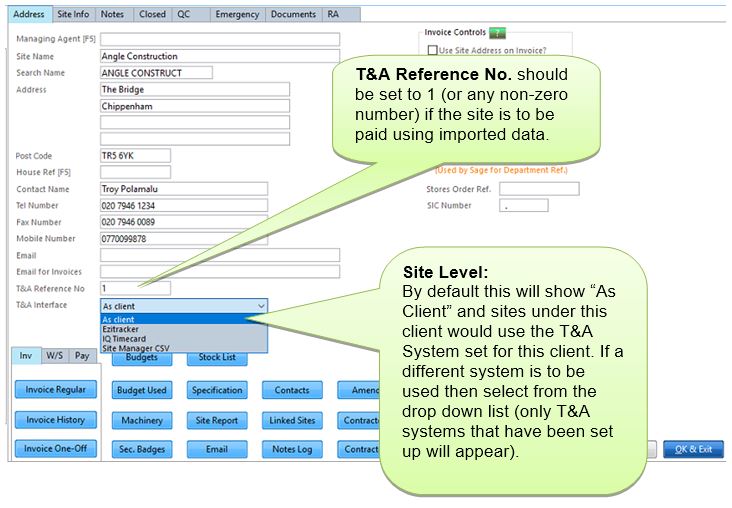
As it is possible to have some sites using T&A, some not using it and for different T&A systems to be set for different sites, it is necessary to set flags on the client/site to denote that it is using T&A for timesheet imports. There are two levels to this, the T&A Reference number at the site level and the T&A Interface which can be set at either Client or Site.
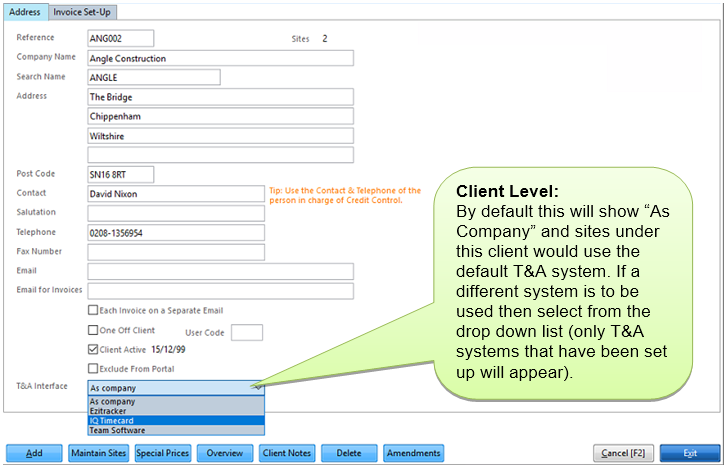
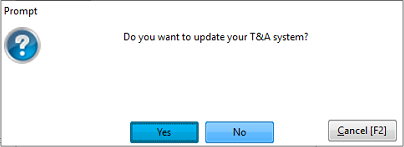
On exiting after changing any settings in a site you will see the message below. Click Yes to add the site to the list to be sent to the T&A system that has been selected.
By setting the T&A Reference Number the following will happen:
When a pay cycle is opened, if this number is not zero then the regular hours are not copied into the current pay cycle, and when the Time & Attendance timesheet import is run, only data for these sites is imported.
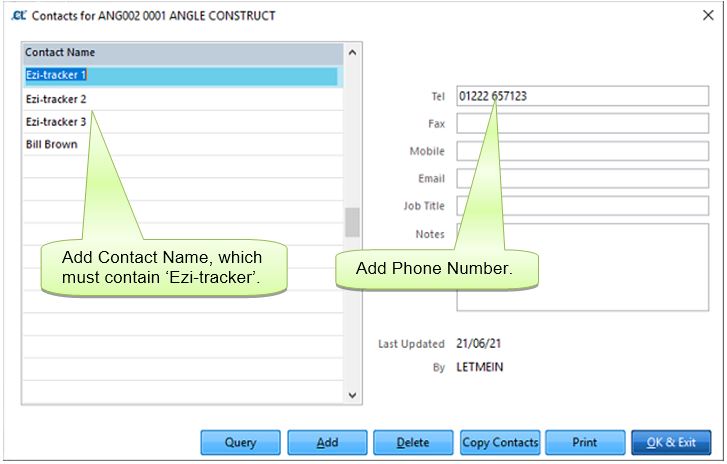
The Ezi-tracker phone numbers are also set up on the site. To allow these to be different from the normal site phone number, these are entered in the contacts data for the site (accessible via Clients, Sites, Address tab, Contacts PB).
Multiple numbers can be set up but the contact name must contain Ezi-tracker (not case sensitive).
Setting up Managers for Ezi-tracker
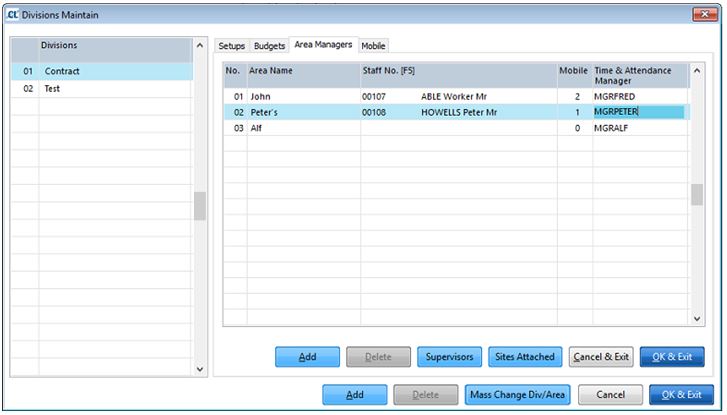
Within the Area Manager screen of the Divisions Maintain, it is possible to add the Ezi-tracker Managers Code. If this is present, when sending site/staff it is used instead of the default manager code.
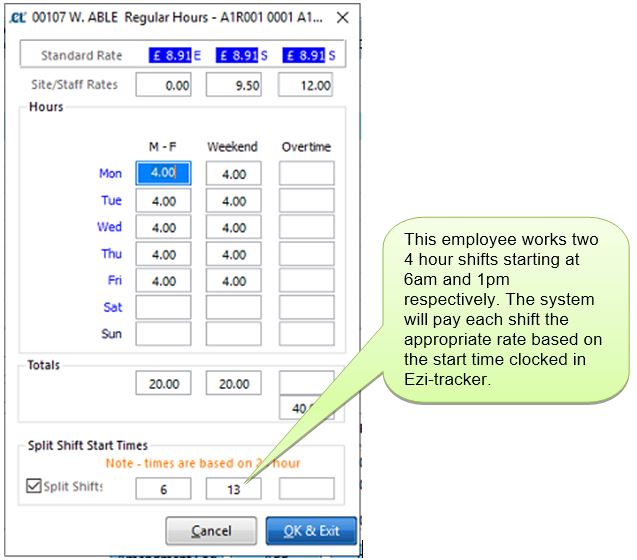
Split shifts are set up on the staff regular hours screen. Ticking the split shift box enable the entry to
the shift start times. The start time for each shift must be entered to the nearest hour.
NOTE when shifts are matched to start times a two hour tolerance is applied. For example, if the
shift start time is set for 06:00 providing the login in time is between 04:00 and 08:00 this will be
classed as a match.
